
Date, time, date & time, file upload, and form field questions handle scheduling, attachments, and multi-field pages in one place.
Date / Time / Date & Time#
Full guide: Date / Time / Date & Time →
Collects a single date, time, or both from respondents.
When to use it:
- Appointment or event dates.
- Birth dates for age-based logic.
- Any field where a calendar or clock is easier than free-form text.
Respondents get a modernized date/time picker that works consistently across desktop, tablet, and mobile. Keyboard navigation is fully supported — respondents can tab into the field, type a date directly, or open the calendar popover to click.
Display style#
Properties → Settings → Display style chooses how the picker looks. It does not change what is stored, so you can switch it on a live survey without affecting answers already collected.
- Standard (default) — a compact button that opens the calendar or time list in a popover.
- Graphical — an inline card with a coloured header showing the current selection, a full month grid, and an analog clock dial. Picking a date on a "Date & time" question moves you straight to the clock, and on a "Date range" question the days between your two dates are shaded once you pick the end date. A plain time box sits under the dial for anyone who would rather type or use a keyboard.
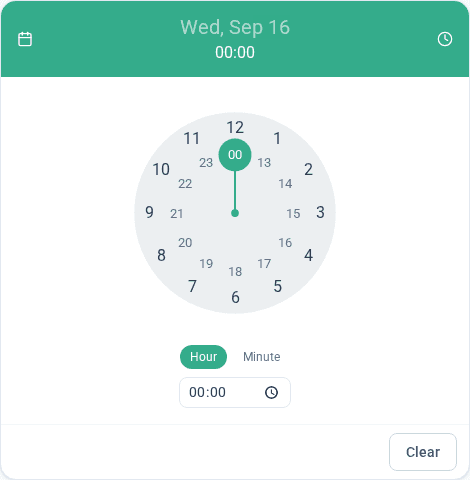
Both styles offer the same times: hours 00–23 and minutes in five-minute steps (:00, :05, :10 … :55). If you build a condition that checks a time question for an exact value, remember respondents can land on any of those steps.
Logic support#
Date/time questions have their own condition operators (Before, After, Between) — see Logic, Flow & Conditions.
File Upload#
Full guide: File Upload →
Respondents attach files (documents, images) or use camera capture when enabled. File count, size, and type limits currently ship with fixed platform defaults (5 files, 10MB each, images/PDF/Word) rather than a per-question control in the properties panel — see the File Upload guide for details.
Note: File upload UI and validation are complete; organization-level cloud storage for uploaded files may still be rolling out in your environment.
When to use it:
- Receipt or proof-of-purchase uploads.
- Creative or concept submissions.
- Research that requires an image or document artifact.
Form Fields#
A composite question with multiple sub-fields (text, email, phone, date, dropdown, and more) on one page. Each field can be required independently and configured for width and validation.
When to use it:
- Contact or registration blocks.
- Short surveys where you want one screen of related inputs.
- Reducing perceived length vs. many separate questions.
For individual validated types (email, phone, ZIP only), see Text & Contact Questions.
Related guides#
- Question Types — overview and when-to-use table
- Logic, Flow & Conditions — date/time operators
- Text & Contact Questions — email, phone, ZIP as standalone types
- Platform Feature List — file storage and fielding status
Was this page helpful?