
MaxDiff (Maximum Difference Scaling, also called Best–Worst Scaling) asks respondents to pick the best and the worst item from a small set, repeated across several screens. Because every choice is a forced trade-off, MaxDiff produces a far more discriminating preference ranking than a battery of rating scales — there are no "everything is a 5" responses. Use it to prioritize features, messages, claims, package designs, or any list where you need a clean "what matters most" ordering.
This guide covers every MaxDiff setting in the survey builder, what each one does to the respondent experience, and where it takes effect.
Adding a MaxDiff question#
MaxDiff is a custom-interface question type, shown in the question palette as ⚖ MaxDiff — "Best/worst trade-off across items." Click or drag it into the section you want, then fill in the item list and open the Settings tab in the Properties panel to configure the design.
A MaxDiff question has two authoring areas:
- The question card (on the canvas) — the prompt, the MaxDiff Items list, and the Columns (Best/Worst labels and colors).
- The Settings tab (Properties panel), in three parts:
- Settings: Design of Experiment (with the Top-N Bandit parameters right under it when chosen), Screens & Items, Constraints and the Follow Up Question.
- Display: Respondent Interface (with Desktop Columns and Mobile Columns for Sequential), Answers Display, Text position for Desktop and for Mobile, Text area %, Text size, Fit to Screen and Show Best column on the right.
- Then Page Break After, Carry Forward and Recode Values.
Items and columns#
The item list is the pool of options respondents trade off against each other. Add items one at a time, paste many at once with Bulk Edit, or pull them from an earlier question with Carry Forward Choices. Each item can carry an image via Insert Graphic for visual studies.
The Columns block controls the two selection columns shown on every screen:
- Best label / Worst label — the column headers respondents see (default "Best" and "Worst").
- Best color / Worst color — the highlight colors for each selection (default green
#27ae60for Best, red#c0392bfor Worst).
Item text and the Best/Worst labels use the same rich text editor as other answer text: bold, italic, underline, strikethrough, font size, text color and links. A text color you apply to a label replaces the column color for that text only; the column color still marks the selections and any label text you leave unformatted.

Settings#
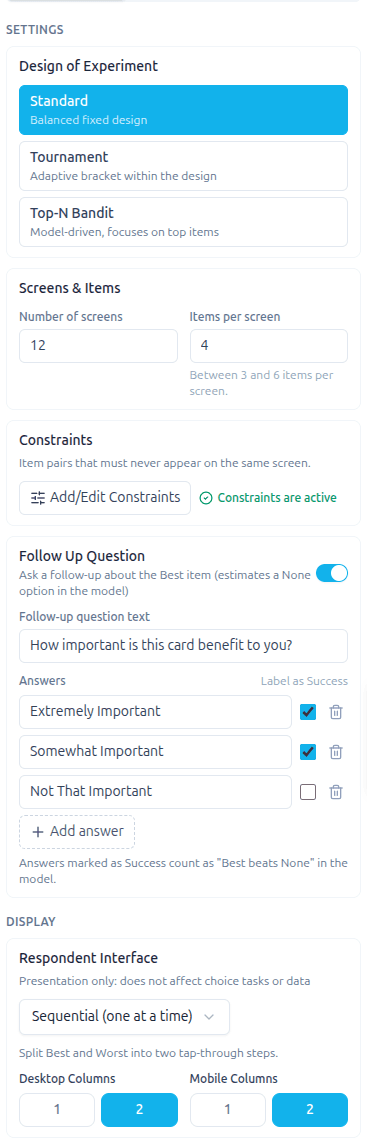
The Settings group holds the design of the exercise: which items appear together, how many screens there are, which pairs never meet, and the optional Follow Up Question.
Design of Experiment#
The Design of Experiment (DOE) picks the strategy that decides which items appear together on each screen. Pick one of the three options.
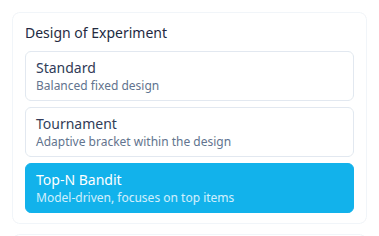
| Option | What it does |
|---|---|
| Standard | A balanced design — every item appears the same number of times across the screen set. This is the default and the right choice for most studies. |
| Tournament | An adaptive bracket within the design — items that "win" advance across screens, concentrating later screens on the stronger options. No model runs are involved. |
| Top-N Bandit | A model-driven design that learns from responses already collected and focuses screens on the top-performing items. It runs a conditional-logit model server-side and refreshes periodically during fielding. |
Where it takes effect: Standard and Tournament both render in the in-builder Preview. Top-N Bandit falls back to the Standard balanced design in preview, because there is no model result to steer it until responses have been collected — that difference shows up in live fielding and analysis only.
Top-N Bandit parameters#
Choosing Top-N Bandit reveals three extra controls, directly under the Design of Experiment:
- Focus on Top X% (0–1) — the share of top items the bandit should concentrate on (default
0.3, i.e. the top 30%). - Min respondents to start — the bandit serves a regular balanced design until this many responses are collected, then switches to model-driven sampling (default
50). - Update every N respondents — how often the model is re-run and the sampling refreshed during fielding (default
50).
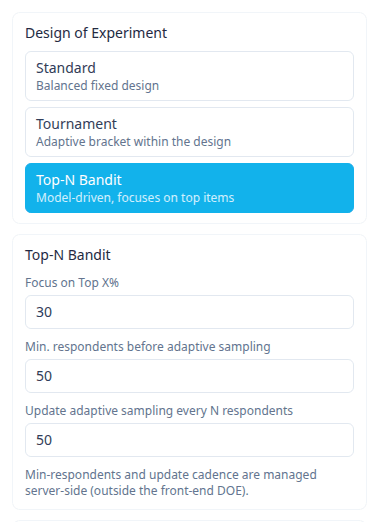
These three values are stored on the survey and read by the server-side model and fielding scheduler — they are intentionally managed outside the front-end design code, so the in-builder preview is unaffected by them.
How randomization actually works#
This is the most common question about MaxDiff, so it's worth being precise.
Within a respondent, exposure is balanced first. The design fills each slot with the item that has been shown least often so far. That means every item appears once before any item appears twice — with 12 items at 4 per screen, screens 1–3 cover the entire list before anything repeats. This is intentional and it is what makes the resulting utilities unbiased. It is not a missing shuffle. Which items land together on a screen, and in what order, is random within that constraint.
Across respondents, every respondent gets a different rotation. The design is seeded from the question and the respondent's session, so no two people see the same screens, the same order, or the same item positions. Each individual still gets perfectly even exposure. This is what keeps position and order effects from being confounded across the sample.
Within a session it is stable. A respondent who navigates back, or resumes a partly finished survey, sees the same screens they saw before. Preview uses a fixed session identifier, so the design does not churn while you are authoring the question. On the Traditional interface, going back also keeps the picks made on that screen. On Sequential, Back starts the previous screen over with nothing selected (see Respondent Interface).
Note for previewing: because preview is deliberately stable, previewing the same question twice shows you the same screens. That is expected and does not reflect what respondents get in the field.
Screens & Items#
These two numbers control the size and length of the exercise:
- Number of screens — how many best/worst tasks each respondent completes. More screens means more comparisons per item and a more stable ranking, at the cost of respondent effort.
- Items per screen — how many items appear on each screen for the respondent to choose a Best and a Worst from (typically 4–6).
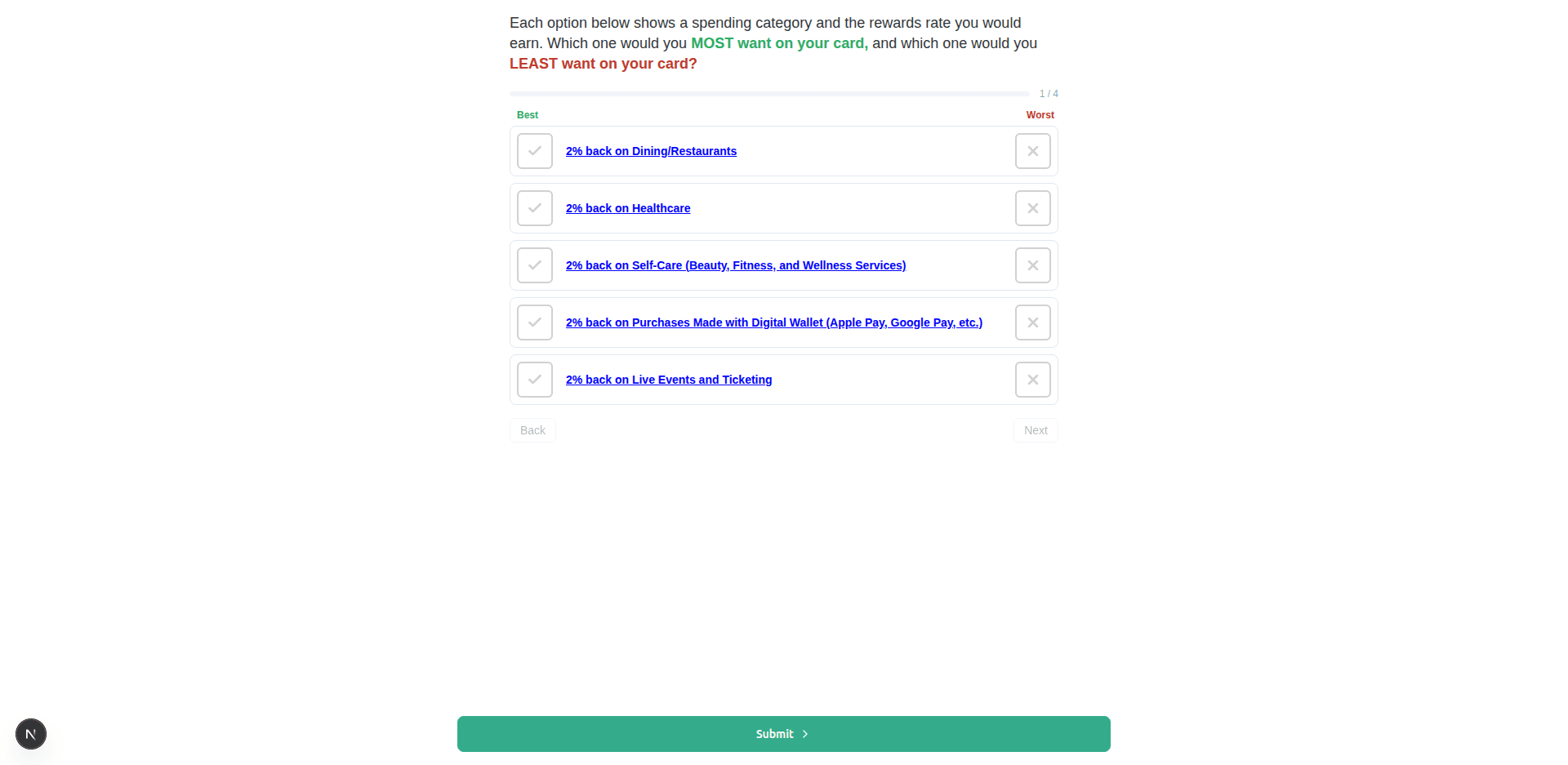
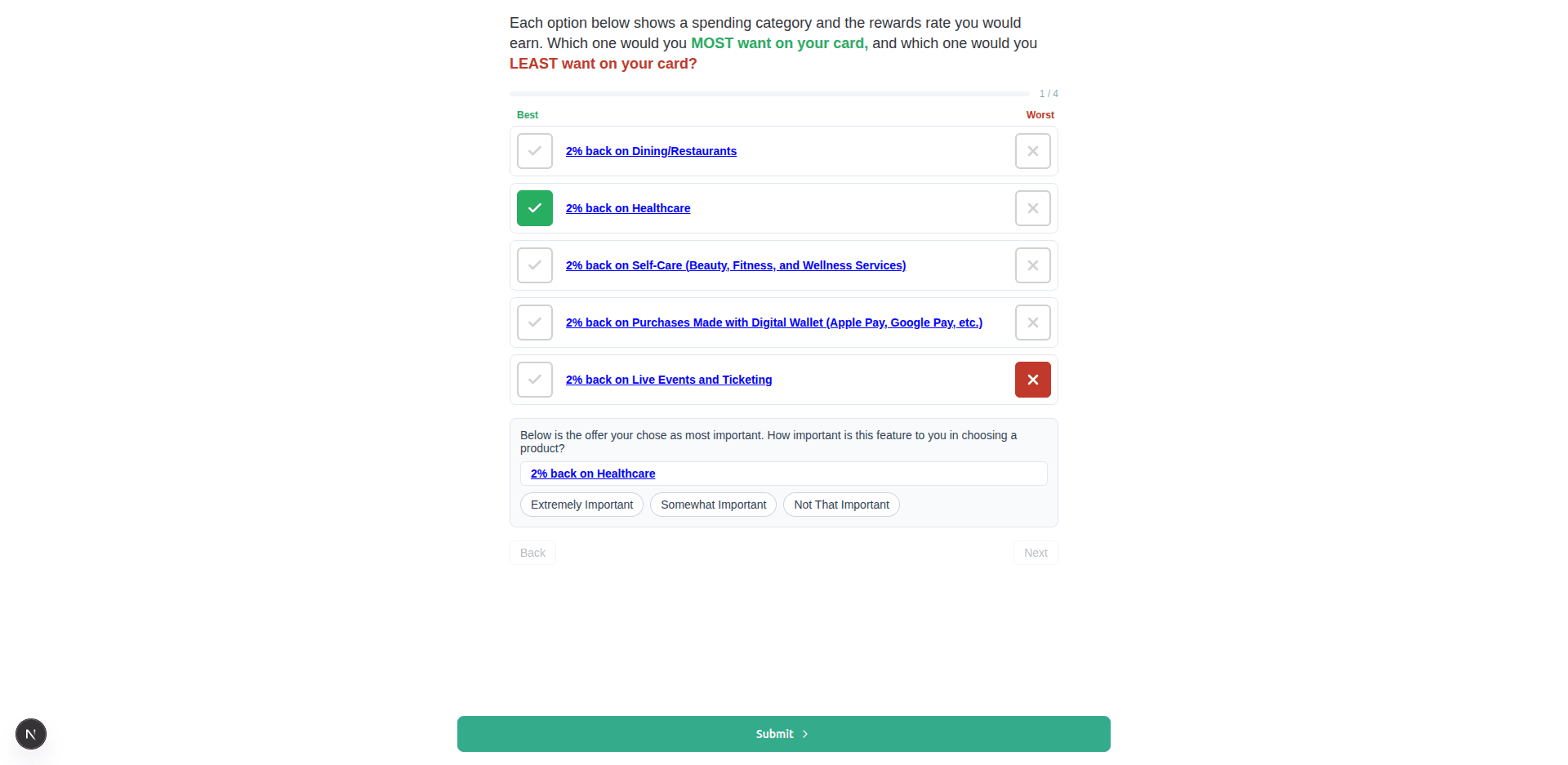
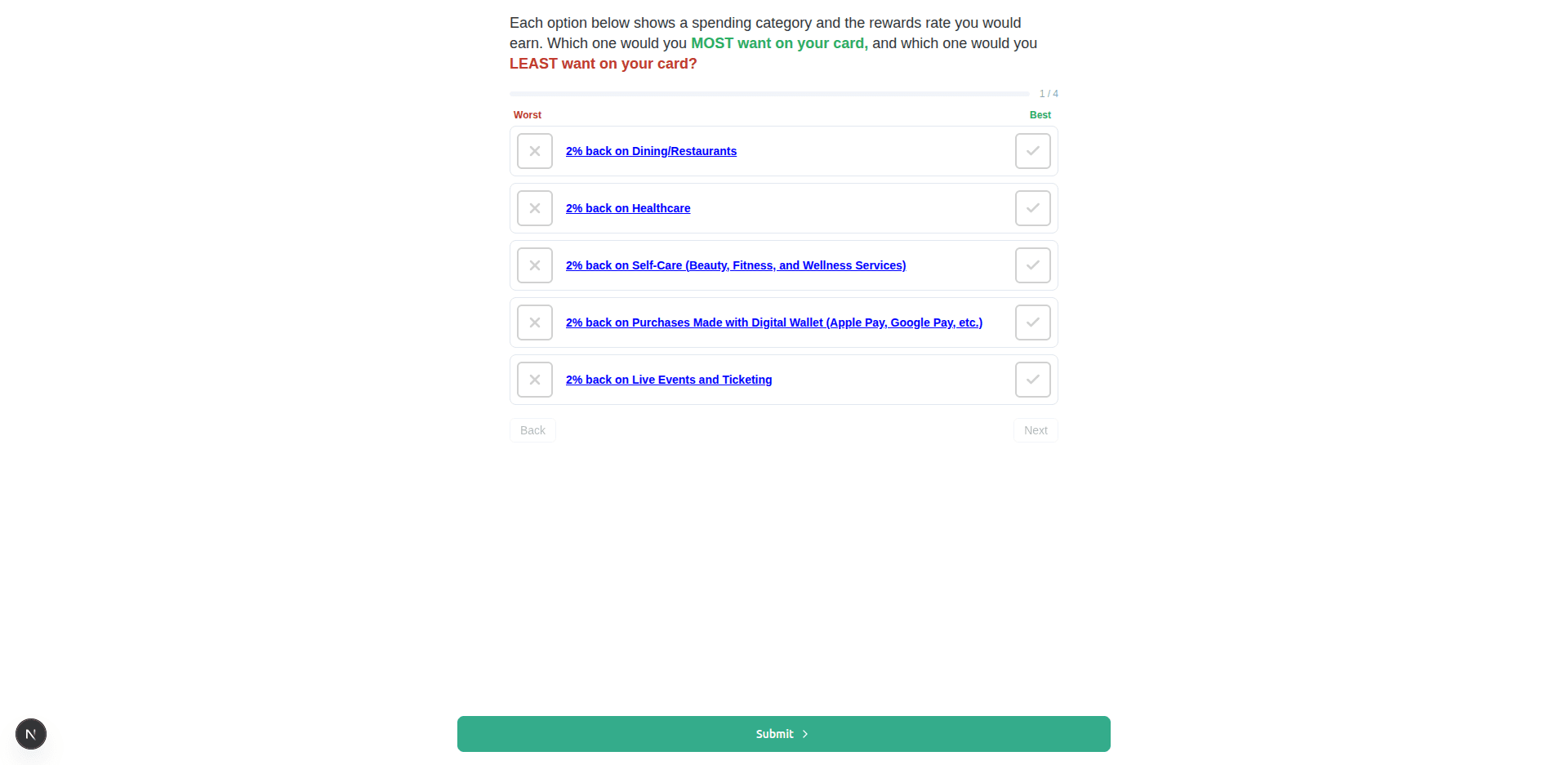
In the respondent view below, Number of screens = 4 is reflected by the 1 / 4 counter, and Items per screen = 5 is reflected by the five rows shown.
Constraints#
Some item pairs shouldn't be shown together — two variants of the same product, a claim and its own counter-claim, or options that make no sense side by side. Constraints let you declare those pairs, and the design will never seat them on the same screen.
The Constraints card sits in the Settings tab right after Screens & Items. Click Add/Edit Constraints to open the constraints editor, then click Add constraint. Each constraint is two items from the question's item list. Add as many as you need; remove one with the trash icon. Every change is saved as you make it, so there is nothing to apply: close the editor with the X when you are done.
When at least one valid constraint is set, the card shows Constraints are active with a check icon next to the button, so anyone opening the question can tell constraints are in play without opening the editor. A valid constraint pairs two different items that are both still in the item list: a row that pairs an item with itself, or names an item you have since deleted, does not turn the note on.
Things to know:
- Constraints apply to every design. Standard and Top-N Bandit honour them on every screen. Tournament honours them in every round, including the later rounds and the final it builds from the winners; when a round cannot be built without seating a constrained pair together (for example a two-item final made of that pair), it ignores that constraint for that round only.
- Balance is preserved. Excluding a partner only affects which items can share a screen — every item still gets even exposure overall.
- The builder warns you if you over-constrain (Standard and Top-N Bandit). Constraints reduce the pool of items that can legally appear together. Add enough of them and there may be no way to fill a screen with the configured number of items. The editor runs the real design as you edit and tells you when that happens, so you can remove a constraint or lower Items per screen before fielding.
- Deleting an item cleans up its constraints. Any constraint naming that item stops being shown immediately and is dropped for good the next time the question is saved — deleting an item never blocks a save.
Follow Up Question#
The Follow Up Question adds a follow-up question about the item the respondent picked as Best on each screen. It is used to estimate a "None" option in the model — i.e. whether the chosen Best item is genuinely wanted, or merely the least-bad of the set.
When you turn it on you configure:
- Follow-up question text — the prompt shown under the chosen Best item (for example, "Below is the offer you chose as most important. How important is this feature to you in choosing a product?").
- Answers — the response options for the follow-up (for example, Extremely Important / Somewhat Important / Not That Important).
- Label as Success — a checkbox on each answer. Answers marked as Success count as "Best beats None" in the model; unmarked answers count as None beating Best. This is what lets MaxDiff estimate a None threshold rather than just a relative ranking.
In the respondent experience, once a Best (and Worst) is chosen on a screen, the follow-up opens in a popup with the chosen Best item and the answer options. The chosen item is shown with the question's Answers Display, the same way it looks on the screens: with Both, its image and text in the same Text position and Text area %; with Images Only, its image. An item that has no image, or a question set to Text Only, shows the item text.
Back to choices in the popup clears both the Best and the Worst on that screen and returns the respondent to the Best question.
With the Follow Up Question on, a screen is only considered fully answered once its follow-up has also been answered, and the question is mapped to the sequential analysis model rather than the classic one.
Display#
The Display group holds the settings that change how the task looks to respondents. None of them changes the design or the data collected.
Respondent Interface#
Respondent Interface picks how respondents make their picks. It is presentation only: it does not affect the choice tasks or the data.
- Traditional (Best & Worst together) (default): one row per item, with the Best and Worst controls side by side.
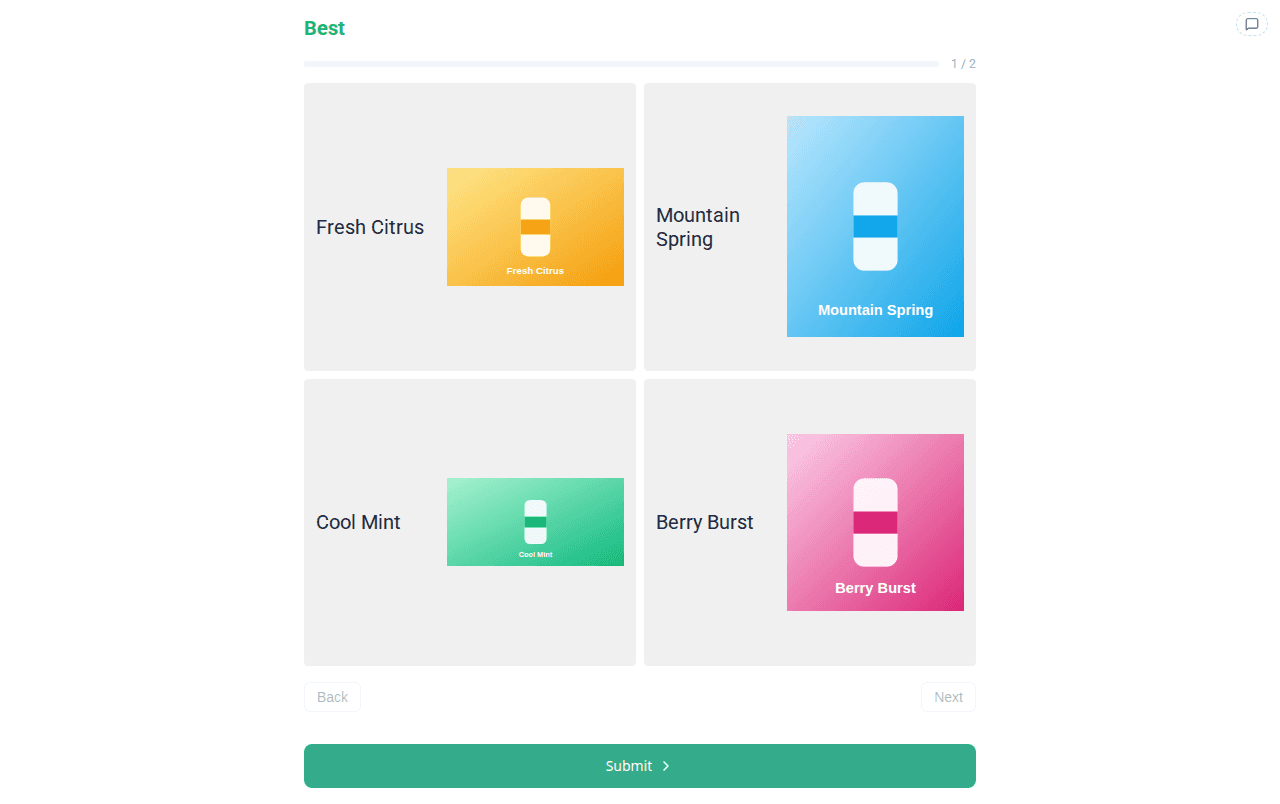
- Sequential (one at a time): Best and Worst are split into two tap-through steps.
When Sequential is chosen, two more controls appear under it:
- Desktop Columns: 1 or 2. How many columns of items a respondent on a desktop sees.
- Mobile Columns: 1 or 2. How many columns of items a respondent on a phone sees.
A new Sequential question starts at Desktop 1 and Mobile 1, and so does any question you switch to Sequential from Traditional. "Mobile" means a screen 640 pixels wide or narrower; anything wider uses the Desktop setting. Traditional always shows one row per item, so it does not ask for columns.
A question saved earlier with the old Sequential — 2 columns interface opens as Sequential with Desktop 2 and Mobile 1, which is exactly how it looks to respondents today. Nothing about it changes until you pick different values.
On the Sequential interface:
- Tapping the chosen Best again undoes it. During the Worst step, the item picked as Best can be tapped to un-choose it; the screen goes back to the Best question. Once both Best and Worst are chosen, the items stay locked.
- Back starts the previous screen over. The screen comes back with nothing selected, on the Best question, and any Follow Up Question answer for it is cleared. In a Tournament design, the later rounds are rebuilt from the new picks. On Traditional, Back keeps the picks already made.
Answers Display#
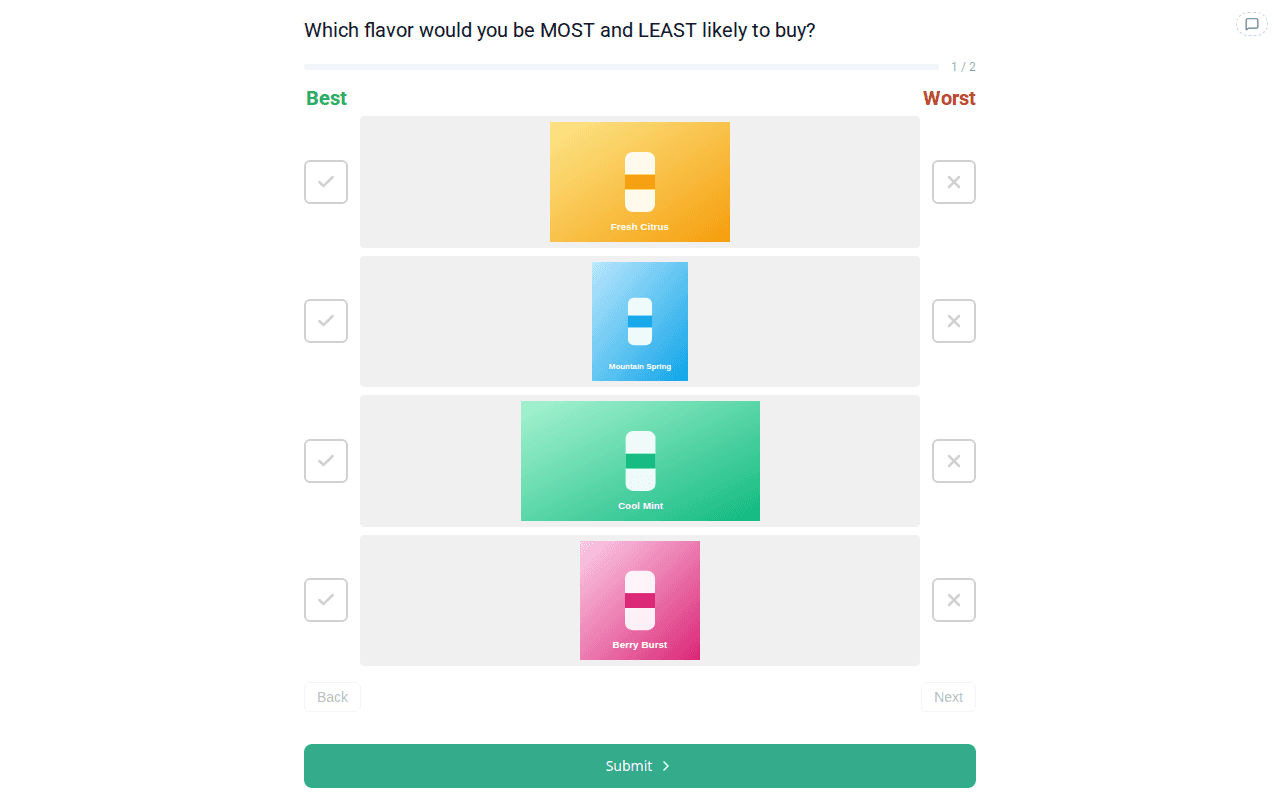
Answers Display controls what each item shows. It applies to every interface: Traditional and Sequential. The chosen Best item in the Follow Up Question popup uses it too.
- Both (default) shows the item's image and its text, laid out by Text position and Text area % below.
- Text Only shows the text and hides every image.
- Images Only shows the image alone. With Fit to Screen on, the item boxes fill the screen below the question and instruction text. Each image is as large as its box allows without being stretched. An item that has no image still shows its text.
Text position and Text area %#
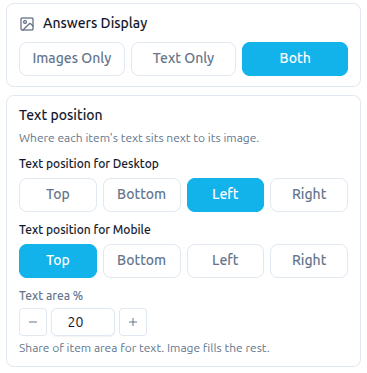
While Answers Display is Both, more controls appear under it. They are asked for every interface, Traditional and Sequential alike:
- Text position for Desktop and Text position for Mobile: Top, Bottom, Left or Right (default Right). This is where the text sits inside each item box; the image fills the rest of the box, without distortion, and the boxes fill the screen. "Mobile" is a screen 640 pixels wide or narrower, the same as for columns. A question saved before the two were split keeps its one Text position on both devices until you change one.
- Text area %: one value for both devices, setting how much of each item box goes to the text. Use − / + to move in steps of 5, from 10% to 90%; the default is 20%. With Left or Right it is a share of the box's width; with Top or Bottom it is a share of its height.
These layouts apply when the question's items have images. A MaxDiff whose items are text only keeps its plain text rows, whatever Answers Display is set to.
Text size#
The Text size card sizes the question text, the item text and the Best / Worst labels, the same way it works on every other question type. See Font sizes.
Fit to Screen#
When Fit to Screen is on (default), the widget sizes the question and all of its choices to fit the viewport without scrolling — useful on mobile and for keeping the whole task visible at once. It is a purely visual setting and does not change the data collected.
With items that have images (Answers Display Images Only or Both), Fit to Screen on stretches the item boxes to fill the screen height, so the images are as large as possible. With it off, each image box is a fixed height and the page scrolls.
Show Best column on the right#
By default the Best column is on the left and Worst on the right. Turn Show Best column on the right on to swap them — Best moves to the right, Worst stays on the left. Some study designs prefer this orientation to match a left-to-right "worst → best" reading order.
Page Break After, Carry Forward and Recode Values#
After the two groups come the settings every question has: Page Break After, Carry Forward and Recode Values. They work on a MaxDiff the same way they work elsewhere.
Settings reference#
Every MaxDiff setting, what it controls, and where it takes effect. "Respondent widget" means the setting changes what respondents see during fielding/preview; "Back-end model" means it is saved on the question and consumed by the server-side design/modeling layer.
| Setting | Default | Controls | Where it takes effect |
|---|---|---|---|
| Design of Experiment | Standard | Screen-generation strategy (Standard / Tournament / Top-N Bandit) | Respondent widget (Top-N Bandit shows the balanced design in preview) |
| Focus on Top X% | 0.3 | Share of top items the bandit concentrates on | Back-end model |
| Min respondents to start | 50 | When the bandit switches from balanced to adaptive | Back-end model / fielding scheduler |
| Update every N respondents | 50 | Bandit model refresh cadence | Back-end model / fielding scheduler |
| Number of screens | 5 | How many best/worst tasks each respondent sees | Respondent widget |
| Items per screen | 4 | How many items per screen (3–6) | Respondent widget + analytics parsing |
| Constraints | None | Item pairs that must never share a screen | Respondent widget (Standard and Top-N Bandit only) |
| Follow Up Question | Off | Add a Best-vs-None follow-up per screen | Respondent widget + analysis mapping + validation |
| Follow-up question text | — | The follow-up prompt | Respondent widget |
| Answers (+ Label as Success) | — | Follow-up options and which count as "Best beats None" | Respondent widget + back-end model |
| Respondent Interface | Traditional | How respondents pick Best and Worst (Traditional / Sequential). Presentation only | Respondent widget |
| Desktop Columns | 1 | Columns of items on a desktop, 1 or 2 (Sequential only) | Respondent widget |
| Mobile Columns | 1 | Columns of items on a phone (640px wide or less), 1 or 2 (Sequential only) | Respondent widget |
| Answers Display | Both | Images Only / Text Only / Both for each item | Respondent widget |
| Text position for Desktop | Right | Where the text sits in each item box on a desktop (Both only) | Respondent widget |
| Text position for Mobile | Right | Where the text sits in each item box on a phone (Both only) | Respondent widget |
| Text area % | 20% | Share of each item box given to text, 10–90%, both devices (Both only) | Respondent widget |
| Fit to Screen | On | Fit the task to the viewport (visual only). With images, fills the screen height | Respondent widget |
| Show Best column on the right | Off | Swap Best to the right, Worst stays left | Respondent widget + analytics renderer |
| Best / Worst label | Best / Worst | Column header text | Respondent widget |
| Best / Worst color | Green / Red | Selection highlight colors | Respondent widget |
Data and analysis#
- Each screen is stored as the items shown plus the chosen Best, chosen Worst, and (when the Follow Up Question is on) the follow-up rating. Because every response records the items that respondent actually saw, per-respondent design rotation needs no special handling in analysis — and it improves the model, since varied item combinations identify the utilities more sharply than one repeated design would.
- The per-survey analytics response view renders MaxDiff answers screen by screen, honoring the Best/Worst column placement and resolving the sequential answer labels.
- Using the ranking later in the survey: a later question can carry forward the MaxDiff items in each respondent's own preference order (Best +1, Worst −1, ties put in a random order that stays fixed for that respondent), including just their top N. See Carrying forward from a MaxDiff question.
- Piping and looping by rank: a later question can pipe the respondent's item ranked 1st, 2nd, … (or the items they picked as Best), and a Section Loop can repeat a section over the MaxDiff's items in that respondent's rank order, just as for a Ranking question. See Piping a MaxDiff's ranked items and Section Loops.
- Logic on the ranking: display, skip and branch logic can check where an item landed in that same order — for example "Taste" Item In Top N 3 — with the same conditions as a Ranking question. See Display Logic → MaxDiff.
- MaxDiff data exports in a standardized stacked format — one row per choice set per respondent, with the item columns plus the selected item (and a selected-rating column when the Follow Up Question is on) — which is the standard feed into the preference model.
Related guides#
- Question Types — overview of all question types and when to use each
- Conjoint — choice-based trade-off between multi-feature product concepts
- Display Blocks & Plugins — other custom-interface question types
- Carry Forward & Piping — reuse MaxDiff items and top picks in later questions, or pipe them by rank
- Analytics & Responses — how responses are displayed and exported
Was this page helpful?