
Randomization varies the order in which sections or questions appear, which helps reduce bias in your results. Section loops repeat the same block of questions for each item — for example, one pass per product or concept.
See Logic, Flow & Conditions for how these features connect to display logic, skip logic, and the Flow tab.
Randomization#
Randomization lets you vary the order in which sections or questions are shown, which helps reduce bias in your results.
What you can do#
-
Randomize section order — In the Flow tab, add a randomizer element and choose which sections to shuffle.
-
Show a subset — Instead of showing all sections, show only a certain number (for example, 3 out of 10 concepts). If some of those sections sit behind a Branch condition, only the ones the respondent currently qualifies for are in the running — the count is a maximum, not a guarantee, so a respondent who only qualifies for 1 of them sees just that 1, and one who qualifies for none sees none.
-
Even distribution (Least Fill) — Automatically steer respondents toward the least-shown sections so each one gets roughly equal exposure. You can view and adjust the counts if needed.
-
Randomize Constant Sum items — A Constant Sum question's Randomization section offers the same options as a Multiple Choice question: shuffle, flip, present only N of M, Least Fill, groupings, and locking or excluding individual items. You can also open it from the shuffle icon above the item list.
-
Show a random selection of products on a shelf — On a Simplified Shelf Choice question, the question's Randomization section offers a random product draw (off by default), so each respondent sees a different set of products on the shelf. Only None and Shuffle with "Present only N" are offered there. A shelf question cannot be used as a loop source.
Randomizing a question's options#
A question's own answers (or grid rows and columns, or ranking items) are randomized from the Randomization row in the question's properties: None, Shuffle, Flip or Advanced.
Grouping answer options#
A group keeps a set of answer options (or grid rows, grid columns, ranking items) together, so whichever of them are shown always appear next to each other. Under the question's Randomization row in its properties, choose Set Groupings. Matrix questions have one Set Groupings button for Rows and one for Columns.
In the Set Groupings window:
- Create a group, name it, and drag options into it (or tick several and use Add selected, or the Move to menu on each option).
- Show group names displays each group's name as a heading above its options. Names cannot be shown when options have images. For grid columns the switch is not offered, because column headings are not drawn.
- Save Settings saves the groups.
- Save and Apply Randomization saves the groups and opens Advanced Randomization on the Items tab, so you can set up how groups and options are randomized in one go. Nothing changes for respondents until you choose Save there; if you cancel, the question keeps the randomization type it already had. To use Shuffle or Flip instead of Advanced, cancel Advanced and choose Shuffle or Flip in the Randomization row: groups are then shuffled or flipped first, and the options inside each group after them.
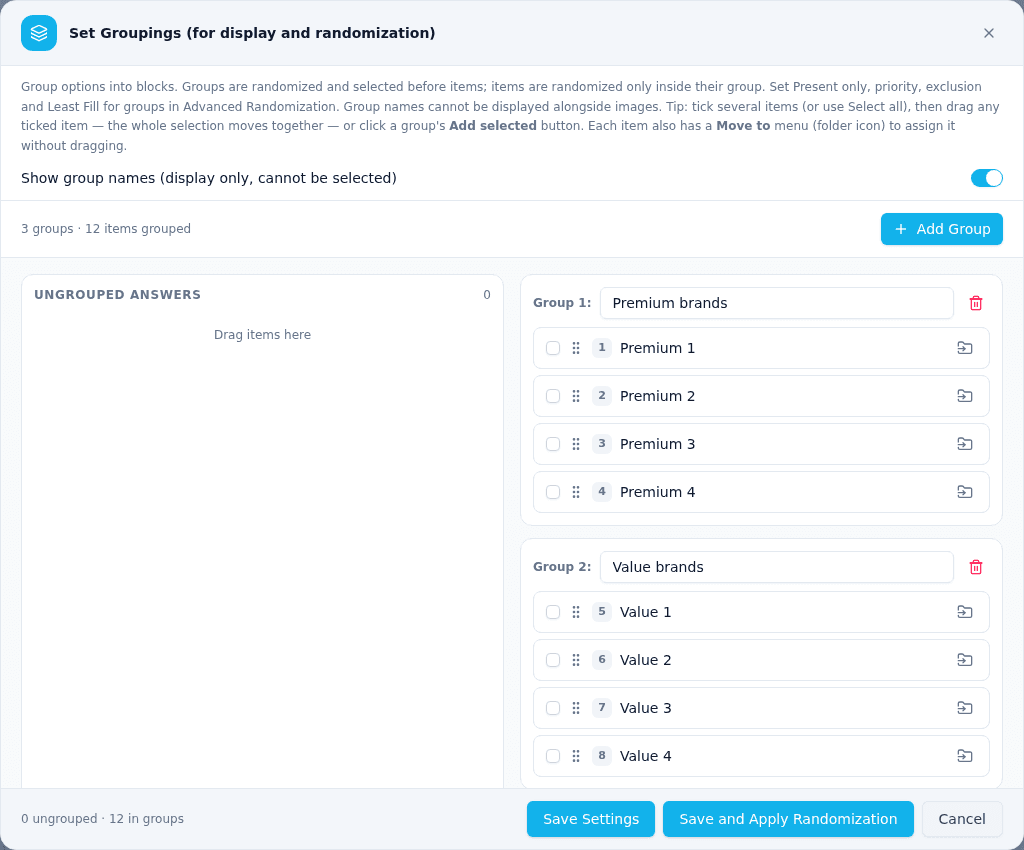
Groups are randomized first, then the options inside each group. There are no separate "Randomize group order" or "Randomize within group" switches any more; the question's randomization type decides both:
| Randomization type | Groups | Options inside a group |
|---|---|---|
| None | In the order you arranged them | In the order you arranged them |
| Shuffle | Shuffled | Shuffled |
| Flip | The whole list, groups and ungrouped options together, is reversed | Reversed |
| Advanced | Chosen and ordered by the settings on the Groups tab | Chosen and ordered by the settings on the Items tab, only inside the groups that were chosen |
Options that are not in any group keep to the places ungrouped options had: they never move into a group, and groups never split them. To keep some options of a group in a fixed place, use Advanced and Lock Position; a locked option keeps its place inside its group.
Advanced Randomization: Items, Groups and priority rules#
Randomization → Advanced has four tabs in the bar at the top: Items, Groups, Item Priority Rules and Group Priority Rules, each with a count. The selected tab is filled in, and everything below the bar belongs to it. It opens on Items.
Items tab. Lock, exclude, Present only a number of options, Evenly balance? (Least Fill) and, with Set priority on, a priority per option, as before. Each option shows the group it belongs to. If its group is excluded, the option is greyed out ("Excluded because its group is excluded").
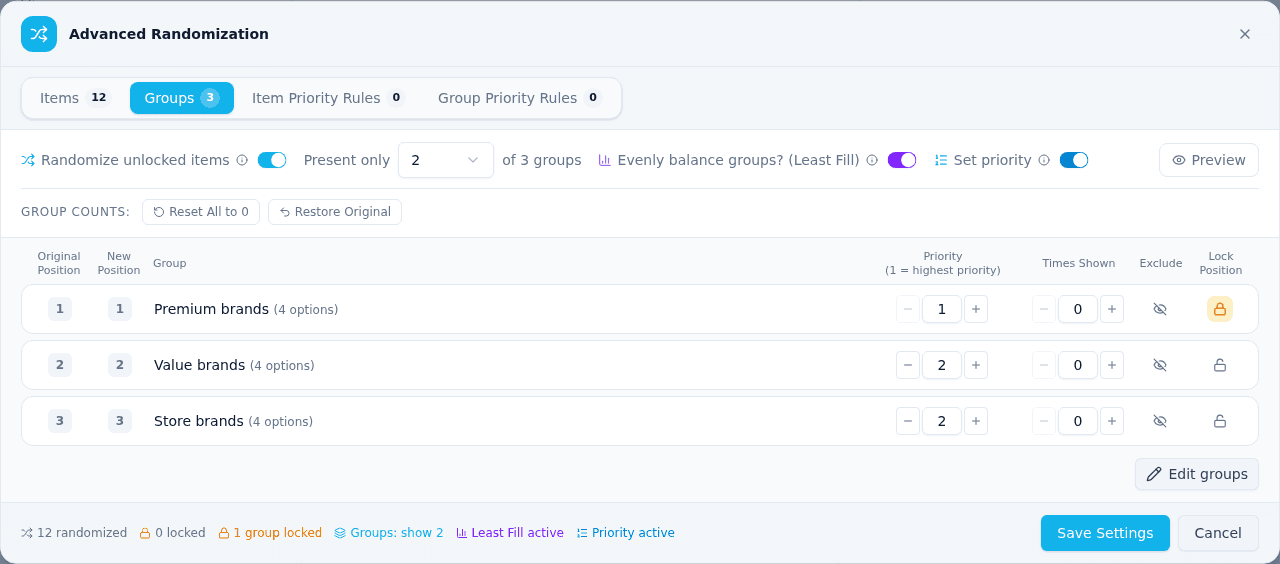
Groups tab. One row per group, with:
- Priority (1–99) (while Set priority is on). With Present only set for groups, priority 1 groups are chosen first. Priority decides which groups are shown, not their order: the groups shown are shuffled. With groups Present only at All, the tab notes "Priority decides which groups are shown when Present only is less than all."
- Exclude, which hides the group and every option in it.
- Lock Position, which keeps the group in its place among the groups while the others are shuffled around it. A locked group is always shown, even with Present only set for groups. A group locked at a position after the last group shown appears at the end, in its locked order. Locking every group keeps the groups in their order and shuffles only the options inside them. Like option locks, it applies in Advanced only.
- Times Shown (while group Least Fill is on), with Reset All to 0 and Restore Original.
- Present only a number of groups, and Evenly balance groups? (Least Fill) in the bar at the top.
- Edit groups, which saves your changes and opens Set Groupings.
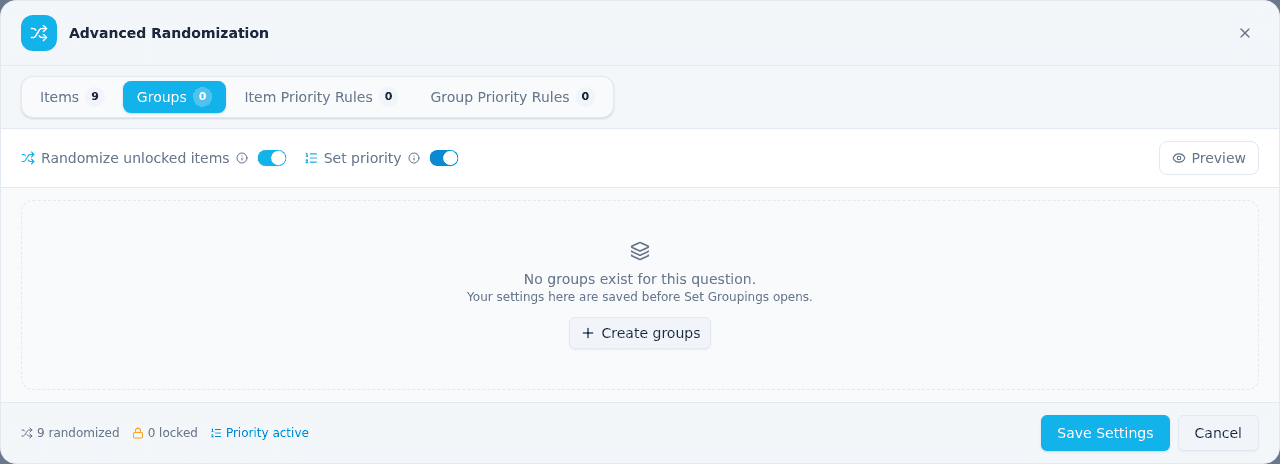
If the question has no groups yet, the Groups and Group Priority Rules tabs say "No groups exist for this question." with a Create groups button, which saves your changes and opens Set Groupings.
How groups and options are chosen (Advanced):
- Excluded groups, and excluded options, are taken out.
- Groups are chosen: with Present only set for groups, priority 1 groups are chosen first; within a priority, Least Fill (if on) picks the least-shown groups, otherwise the pick is random. Priority always beats Least Fill.
- Options are chosen only from the chosen groups (plus any ungrouped options), using the Items tab's Present only, priority and Least Fill.
- Groups are ordered, then the options inside each group. In Advanced the chosen groups and options are shuffled; priority does not decide their order.
- A chosen group that ends up with no options is hidden, with its name.
For example, with three groups of four options each, groups Present only 2, group A at priority 1 and B and C at priority 2, and options Present only 6 with Least Fill: every respondent sees group A plus one of B or C, and six options drawn only from those two groups. Options from the group that was not chosen never appear.
Group settings only take effect with the Advanced randomization type and Randomize unlocked items on (exclusion works whenever the type is Advanced). With Shuffle or Flip they are kept but not used.
If everything is excluded (every group, or every option), the question is skipped for respondents. The dialog warns "All groups are excluded: this question will be skipped" and asks you to confirm when you save.
Priority and priority rules#
With Randomize unlocked items on, turn on Set priority to give each option a priority from 1 to 99 in the Priority (1 = highest priority) column:
- Priority decides which items are shown, not their order. With Present only, the slots are filled from priority 1 first, then priority 2, and so on, so priority 1 items are always among the ones shown.
- The items shown are then shuffled together, so a priority 1 item can appear anywhere in the list.
- With Present only at All, every item is shown and priority has no visible effect. The dialog says so under the controls: "Priority decides which items are shown when Present only is less than all."
- Every item starts at priority 1, which behaves exactly like an ordinary shuffle until you change a value.
- Locked items keep their position and are always shown; priority picks which of the other items fill the remaining slots.
- If you lock an item at a position after the last one shown (for example at 9, 10 and 11 while Present only is 8), those items show at the bottom of the list, in their locked order. On a question without groups, the dialog warns you: "3 locked items can't keep their positions because only 8 items are shown. They show at the bottom, in their locked order."
- When the question has groups, an item's priority only decides which items are chosen inside the chosen groups. A group's own priority is set on the Groups tab.
- Section loops are different on purpose. A loop's Randomize with priority setting decides both which iterations run and their order (priority 1 first).
The same Set priority switch turns on priority for groups and for both kinds of rules.
Item Priority Rules let an option's priority depend on a respondent's earlier answers. Open the Item Priority Rules tab and choose Add rule. Hover the ⓘ icon there for a summary of how priority works. Each rule is one line with:
- If — a condition built in the same logic window used for display logic (questions, global variables, survey metadata and so on).
- Items — one or more items the rule applies to, picked from a searchable dropdown. Items are numbered like the Original Position column, and the dropdown has Select all / Clear for the items your search shows.
- Then set priority to — the priority those items get when the condition is true.
When a rule's condition is true for a respondent, its items use the rule's priority instead of their Priority value, which changes which items fill Present only (not their order). Rules run from top to bottom, so if two matching rules set the same item, the lower one wins — drag a rule by its six-dot handle (on the left) to reorder, as on the Items tab. When no rule matches, the Priority values apply as normal. A rule without a condition does nothing, and a rule with no items is removed when you save.
For example, with priorities Apple 1, Banana 1, Cherry 2, Present only 2 and a rule "If Q1 is Brand X, set Cherry to priority 1", respondents who chose Brand X see any two of Apple, Banana and Cherry, while everyone else sees Apple and Banana. Either way the two shown are in random order.
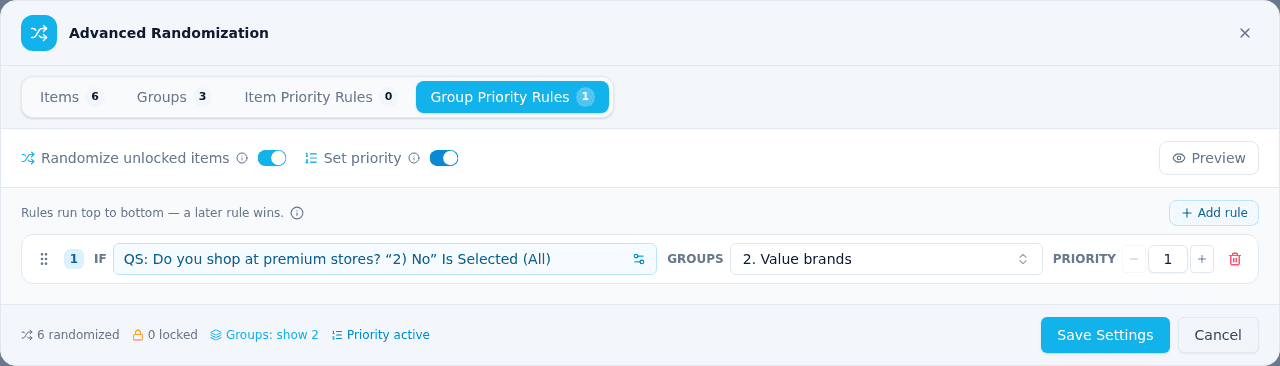
Group Priority Rules work the same way, but the rule picks groups and sets the group's priority. With groups Present only set, use them, for example, to make sure a respondent who uses Brand X always sees the Brand X group (it may appear anywhere among the groups shown).
If Set priority is off, both rules tabs show "Turn on Set priority to use rules" with a button that turns it on.
The Flow tab lists each question's item and group rules under the question, and the dialog's Preview button shows a sample order using the Priority values (rules depend on answers, so they show up in the survey preview rather than here).
Questions grouped before this update#
Questions whose groups were set up before this update keep working exactly as they did, including any "Randomize group order" and "Randomize within group" settings they had. In Set Groupings those settings appear as a read-only line with an ⓘ icon explaining this, and in Advanced the old Randomize group order switch is still shown for them.
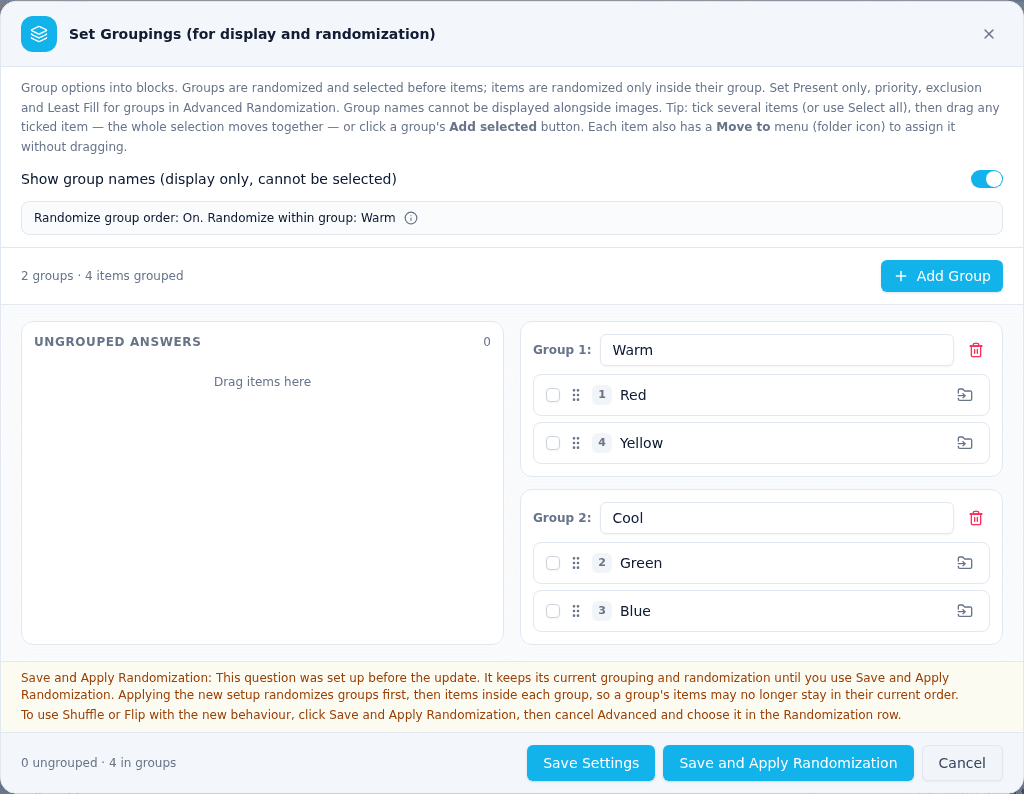
To move such a question to the new behaviour, use Save and Apply Randomization, or change anything on the Groups or Group Priority Rules tab and save. Applying the new setup randomizes groups first, then the items inside each group, so a group's items may no longer stay in their current order (use Lock Position to keep them). You can undo the change with one undo step. Changing groups with plain Save Settings does not move the question.
On the Flow tab#
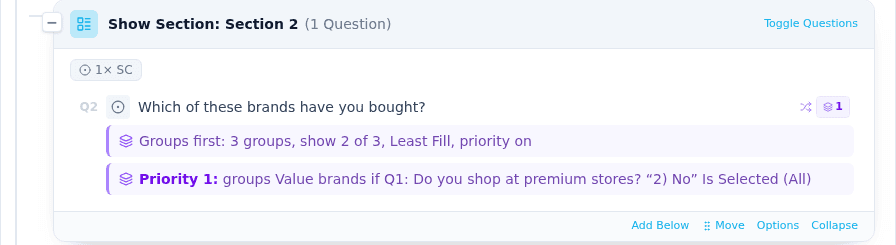
A question whose groups use the new behaviour shows a line under it, for example "Groups first: 3 groups, show 2 of 3, Least Fill, priority on", or "Groups first: groups shuffled, then items inside each group". Group settings that only apply in Advanced are marked "(settings apply in Advanced)", and a question where everything is excluded says "skipped: everything excluded". The rule badges are titled Item priority rules and Group priority rules.
Tip: Randomizers can mix sections and other flow blocks as children. Use the Flow editor to place randomizers on the visual map and confirm which content is inside each shuffle group.
Tip: If a respondent goes back and changes an earlier answer in a way that would have disqualified their randomizer assignment, the randomizer re-draws from whatever they now qualify for — it doesn't leave them on an assignment they can no longer see.
Section loops#
Loops let you repeat a section multiple times with different items — for example, asking the same set of questions about each of several products or concepts.
How to set up a loop#
- Open the section's Section Loop settings (from the section's properties panel or its menu) and turn the loop on.
- Choose a loop source: Static Items, Based on a Question, or Fixed Count.
- Each item or iteration becomes one pass through the section.
Inside the loop, you can use piping to insert the current item's name into question text — so respondents see "Thinking about Product A, how satisfied are you?" and then the same questions again for Product B, and so on.
Each loop iteration is shown on its own page — the respondent completes one pass through the section, clicks Next, and sees the next iteration.
The dialog shows a live iteration count as you configure: an exact number when it can be known up front (static lists, fixed counts, "all items" conditions), or a note that the count depends on the respondent's answers. On the Flow tab, looped sections carry a "Loop" badge with a summary of the loop source.
Looping based on a question#
When you set the loop source to Based on a Question, you can pick an earlier Multiple Choice (Single or Multiple Select), Standard Matrix, Basic Rank, MaxDiff, or Funnel question, and the available conditions change depending on its type. The condition dropdown updates automatically when you pick a source question, and a short description of the selected condition is shown beneath it.
Note: Slider, Distribution, Constant Sum, Multi Numeric, and Text questions are no longer offered as sources for new loops. Existing surveys that already loop on one of these keep working — the configuration is shown with a "legacy source" note.
Multiple Choice (Single / Multiple Select)#
| Condition | What it does |
|---|---|
| All Choices | Loop over every answer option, regardless of what the respondent picked |
| Displayed Choices | Loop over answer options that were visible to the respondent |
| Not Displayed | Loop over answer options that were hidden by display logic |
| Selected Choices | Loop only over the answers the respondent selected (default) |
| Unselected Choices | Loop over answer options the respondent did not select |
Matrix questions#
For matrix sources, the condition dropdown is grouped into Rows and Columns:
Rows:
| Condition | What it does |
|---|---|
| All Rows | Loop once per row |
| Displayed Rows | Loop over rows that passed display logic |
| Not Displayed | Loop over rows hidden by display logic |
| Selected Rows | Loop over rows with a non-empty answer |
| Unselected Rows | Loop over rows with no answer |
Columns:
| Condition | What it does |
|---|---|
| All Columns | Loop once per column |
| Displayed Columns | Loop over columns that passed display logic |
| Not Displayed | Loop over columns hidden by display logic |
| Selected Columns | Loop over columns selected for at least one row |
| Unselected Columns | Loop over columns not selected for any row |
Rows filtered by a column value:
| Condition | What it does |
|---|---|
| Selected Rows for Column | Loop over rows where the respondent selected a specific column |
| Unselected Rows for Column | Loop over rows where the respondent did NOT select that column |
For these two modes, a "Match column value" picker appears right inside the condition panel so you can select which column to filter by. The item table below updates to list whichever axis the loop iterates — columns for the Columns group, rows otherwise.
Example: You have a matrix asking "Rate each feature" with columns Poor/OK/Great. Using "Selected Rows for Column" with the filter set to "Poor", you can loop a follow-up section over only the features the respondent rated poorly.
Ranking questions#
| Condition | What it does |
|---|---|
| All Choices | Loop over all ranking items |
| Displayed Choices | Items that passed display logic |
| Not Displayed | Items hidden by display logic |
| Selected Choices | Items the respondent ranked (in rank order) |
| Unselected Choices | Items the respondent did not rank |
| Value > | Items with rank position greater than a threshold |
| Value < | Items with rank position less than a threshold |
| Value = | Items with rank position equal to a threshold |
| Highest Value | The single item ranked first |
| Lowest Value | The single item ranked last |
For value comparison modes (Value >, Value <, Value =), a rank position input appears inside the condition panel where you enter the threshold.
MaxDiff questions#
A MaxDiff offers the same conditions as a Ranking question and loops over its items in that respondent's preference order — the order saved with their answer (Best +1 / Worst −1, ties in a random order fixed for that respondent), the same order carry forward and piping use. Every condition, including All Choices, Displayed Choices and Not Displayed, repeats the section in that order.
| Condition | What it does |
|---|---|
| Selected Choices | Items the respondent picked as Best at least once (in rank order) |
| Unselected Choices | Items they never picked as Best (in rank order) |
| Value > / < / = | Items whose rank position is greater than / less than / equal to a threshold |
| Highest Value | The respondent's most-preferred item |
| Lowest Value | Their least-preferred item |
For example, loop a section with Value < and a rank position of 4 to ask follow-up questions about each respondent's top three items, most preferred first.
Funnel questions#
A Funnel is a matrix question — its rows are the brands and its columns are the sequential slides — so it offers the same conditions as any other matrix question. Read them in funnel terms:
| Condition | What it does |
|---|---|
| All Choices | Loop once per brand |
| Selected Choices | Loop over the brands the respondent picked on any slide |
| Unselected Choices | Loop over the brands the respondent never picked |
| Selected Choices for Answer | Loop over the brands picked on one specific slide you choose |
| Unselected Choices for Answer | Loop over the brands not picked on that slide |
Looping over one recall window. Choose Selected Choices for Answer, then pick the slide in the Match column value dropdown that appears — for example "purchased in the past month". The section then repeats once per brand selected on that slide, and no others.
The dropdown also lists the question's "None of these" column. Matching on it loops over the brands the respondent never picked on any slide.
In Multiple and Reverse Funnel selection modes, brands carry forward across slides. In Reverse Funnel the selections are cumulative, so "selected on slide 3" means the respondent picked that brand on or before slide 3.
Loop randomization options#
The loop settings include three related options that form a dependency chain:
- Randomize loop order — Shuffles the order in which loop items are presented. The shuffle is stable per respondent — resuming the survey keeps the same order.
- Present only X of total loops — Shows only a subset of loop items instead of all of them. Requires "Randomize loop order" to be enabled (a random subset only makes sense when the order is randomized).
- Show least-seen items first (Least Fill) — Ensures each loop item is shown a roughly equal number of times across respondents. Requires both "Randomize loop order" and "Present only" to be enabled. Per-item display counts are shown in the item table and can be adjusted.
Warning: "Present only X of total loops" and "Least Fill" depend on earlier toggles in that chain. Enable Randomize loop order first, then subset and least-fill options as needed.
When a loop has nothing to loop over#
If a Section Loop is based on a question and the respondent has no active items to loop over, the whole looped section is skipped — they never see a single pass of it. The loop's items are worked out exactly as they always were; the only difference is that a section with nothing active is left out instead of shown once with blank loop fields.
A looped section is skipped when:
- The source question was never shown to them. If display logic hid the source question, nothing about it is active, so there is nothing to loop over. What counts is whether the question was actually put in front of them: a question they were shown, or answered, still counts, even if an answer or variable set later in the survey would hide it now.
- None of the source question's items is active for them. For example: the condition is Displayed Choices and every answer option was hidden by choice-level display logic; the condition is Selected Choices and they selected nothing, or everything they selected is hidden; the condition is Not Displayed and nothing was hidden; the condition is Unselected and they selected every option they could see; or a ranking condition such as Value > matches no ranked item.
One exception: on the Unselected Choices condition, a source question whose every option was hidden by choice-level display logic still shows the section once, unlooped, as it always has. A question with no options on screen leaves no record of what the respondent saw, so the survey does not treat that as proof there is nothing to loop over.
When a section is skipped, the respondent moves straight from the page before it to the page after it, and Back steps over it the same way.
The decision is made once, when the respondent reaches the section. Once they are inside a looped section, nothing they answer and no variable set on its pages can remove the passes that remain — the section runs to the end exactly as it started, including when skip logic jumps them to a later page of that same section. And a section they have already seen is never skipped later: going Back into it, or Back out of it and then Next again, shows it just as before. That holds across a refresh too: a respondent who resumes the survey never resumes inside a skipped section, and a section they saw before refreshing is never skipped afterwards.
The progress bar and the Next / Submit label catch up one page later, deliberately. A looped section is only taken out of the count once the respondent has actually been asked its source question, on a page they have already submitted. So if the source sits on the very page before a skipped looped section that ends the survey, that page still shows Next and a bar that has not reached the end — and pressing Next finishes the survey anyway.
This only applies when the source question is asked before the looped section in the order this respondent walks the survey. A section that loops on one of its own questions, or on a question asked later, is never skipped — and neither is one that a section randomizer happens to present ahead of the section holding its source. Those loops run exactly as they did before.
Note: The All Choices, All Rows, and All Columns conditions loop over what you authored rather than over what the respondent saw, so a section using one of them is never skipped, even if the source question was hidden.
These are configuration states, not skips#
A loop that comes up empty for a reason that has nothing to do with the respondent still shows the section once, unlooped, exactly as it always has:
- A Fixed Count of 0.
- A Static Items list with no items in it, including a loop you turned on but never configured.
- A source question with no answer options, rows, or columns to loop over, or a source question type that has no items to loop over at all.
- A count-driven loop where the respondent typed something that isn't a number — "0", "-2", "three", "lots". A respondent's answer can never delete a section.
- A source question that has since been deleted from the survey, or a loop where no source question was picked.
- A loop whose saved condition does not fit its source question's type (for example after importing a survey or changing the question type). It behaves exactly as it did before.
- A Not Displayed or Unselected condition on a source whose items are generated rather than authored — a slider's scale points, for instance.
Known limitation — a source question inside another looped section. When the source question is itself asked inside a different looped section, its answers are stored separately for each pass of that other loop, so the section is never skipped on its account and works exactly as it did before. In particular, if the respondent leaves that source question blank and the condition is Unselected Choices, the looped section shows once, unlooped, with blank loop fields.
Tip: If a section is unexpectedly missing in Preview, check the source question first — if it is hidden for the path you are previewing, the looped section is hidden too. Previewing from a single section or question never skips it.
Piping inside loops#
Use these piped text tokens inside a looped section to personalize each iteration:
| Token | What it shows |
|---|---|
${lm://Field/1} | Current loop item's name / label |
${lm://Field/2} | Second field value (auto-filled with the item's image URL when the looped item has one — a column's image when looping over matrix columns) |
${lm://Field/N/ImageHTML} | The field value rendered as an image |
${lm://LoopNumber} | Current iteration number (1-based) |
${lm://TotalLoops} | Total number of loop iterations |
${lm://CurrentItem} | Same as Field/1 (alias) |
These tokens work in question text and answer options, and also in the value of
a global variable assignment placed inside the loop. Setting a variable to
${lm://CurrentItem} (loop ${lm://LoopNumber}) records the item shown on that
iteration.
For general piping syntax and QID-based references, see Carry forward & piping.
Related guides#
Was this page helpful?